

You took a photo of your grandson’s birthday cake last month. Now you can’t find it. It’s buried somewhere in a camera roll of 6,847 images, hiding between a blurry shot of your ceiling and seventeen nearly identical photos of your backyard bird feeder.
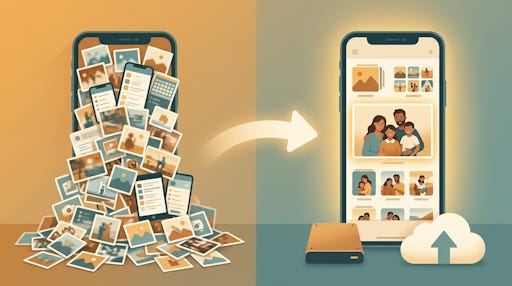
That’s where most of us are.
And it’s not laziness. It’s just how digital photos accumulate. Every phone upgrade, every app, every “just in case” screenshot piles on. Before long, your photo library becomes less of a memory collection and more of a digital junk drawer.
The good news? You don’t need to tackle all of it at once. A little bit of progress, done in the right order, makes a surprising difference.
Ready for the full TheSeniorTechie treatment? Our paid members enjoy monthly brain health deep dives, all Premium Guides, and lifetime TechMaid tech support—a $50/year service included with membership.
Why the Mess Happened in the First Place
Phones make it almost too easy to take photos. Back when you had a roll of 24 exposures, you thought before you clicked. Now, you take five shots of the same thing just to make sure one turns out.
Add in the fact that photos spread across multiple places without you noticing. They’re on your phone, backed up to iCloud or Google Photos, maybe copied to your computer years ago, possibly on an old tablet you forgot about. You end up with the same photo existing in three places at once, which is how a collection of a few hundred real memories turns into a library of thousands of duplicates.
Before anything else, it helps to know that you’re not trying to achieve perfection here. You’re trying to get to “good enough that I can actually find things.”
Your First Move: Pick One Home Base
The single most important decision you’ll make is choosing one main place to keep your photos. Not two. Not “kind of on my phone and sort of in Google Photos.” One place.
For most people, the two easiest options are Google Photos (works on Android and iPhone, free up to 15GB) or Apple iCloud Photos (built into iPhones and iPads). Both automatically back up photos from your phone and let you search by date, place, or even what’s in the picture. Type “birthday cake” in Google Photos and it’ll find your photos of birthday cakes. That alone is worth the setup.
Pick the one that matches your phone and stick with it.
Dealing With Duplicates Without Losing Your Mind
Once you’ve picked a home base, the duplicate problem is next. And yes, it’s annoying. But you don’t have to delete them one by one.
Google Photos has a built-in feature that can stack similar-looking photos together so you can quickly pick the best one and delete the rest. On your phone, open Google Photos, tap the three-dot menu, and turn on “Stack similar photos.” It won’t do everything automatically, but it makes the comparison much easier.
If you want more firepower, a free app called Duplicate Photo Cleaner scans your library and groups identical or near-identical photos for you to review before deleting anything. It’s not complicated, and it saves hours of scrolling.
A Simple Folder System That Actually Works
If you ever want to move photos off the cloud or organize them on your computer, a simple folder structure is all you need. No complicated systems. No special software.
Start with a folder for the year. Inside that, create folders by month or event. Something like: 2024 > June > Granddaughter's Graduation. That’s it. You can find anything in under 30 seconds when it’s organized this way.
You don’t need to go back and reorganize 20 years of old photos right now. Start fresh with photos from this year and work backward slowly, a month or a season at a time, whenever you feel like it.
The Backup Rule You Actually Need to Know
Here’s the single most important thing in this entire article: a photo that exists in only one place is a photo you can lose.
Phones get dropped, stolen, or just die without warning. Hard drives fail. The professional standard is to have three copies: one on your device, one on an external hard drive, and one in the cloud. For most people, two copies is realistic and perfectly fine.
If your photos are in Google Photos or iCloud, you already have one cloud copy. Buying a simple external hard drive ($50-$80 at any electronics store) and copying your photos to it once or twice a year gives you that second copy. Plug it in, drag the folder over, unplug it. That’s genuinely all it takes.
Thinking About Photos as Part of Your Legacy
This is the part people skip, and it’s probably the most meaningful.
When something happens to you, the people you leave behind often can’t get to your photos. They don’t know your password. They don’t know which device has the “real” collection. They end up with nothing, or with 10,000 unlabeled files they can’t make sense of.
A curated collection of your most treasured photos, organized even loosely and backed up somewhere your family can access, is genuinely a gift to them. Not every photo from 2019. The ones that actually tell your story.
Captions Do More Than You Think
While you’re in there organizing, consider adding a caption to a few of your most important photos. Not all of them. Just the ones that someone 20 years from now might look at and wonder about.
Google Photos and Apple Photos both let you add notes directly to a photo. A sentence or two, “This was my mother’s last Christmas, December 2018, at the cabin in Tennessee,” turns a digital file into something irreplaceable. The photo doesn’t change. The meaning does.
A Realistic Photo Habit Going Forward
The reason photo libraries get out of control isn’t a one-time disaster. It’s the slow accumulation of doing nothing regularly.
A monthly photo review, just 15 or 20 minutes, is enough to keep things manageable. Delete the obvious junk. Move the good ones to your home base folder. Add a caption to one or two. That’s it. You’re not trying to build the Library of Congress. You’re trying to keep the good stuff findable.
If that feels like too much, start smaller. Once a season. Even quarterly beats never.
What to Do This Week
You don’t need a full weekend to make real progress. Start with just these three things:
Pick your home base (Google Photos or iCloud) and make sure it’s turned on and syncing from your phone
Turn on “Stack similar photos” in Google Photos to start identifying your duplicates
Buy or dig out an external hard drive and make one backup copy of your most important photos
That’s a meaningful afternoon of work, and you’ll feel the difference immediately. Your photos are worth more than a cluttered camera roll. They’re the closest thing most of us have to a time machine.


I love the photos app on my iPhone. I’ve marked favorites, created shared albums for family, and made personal albums of my deceased husband and each grandchild. I’ve also got albums of remodels, recipes, my childhood, and vacations. I like your caption idea and will definitely add that. I also take screenshots of old family photos and then change the dates to approximate the year they were taken. Obviously, being retired helps, but it’s a rewarding endeavor.
I seriously need to do this. I don’t like iCloud, so I will see if I can hook up Google Photo on my iPhone.