

You’re alone in the house, and something feels wrong. Chest pain, a bad fall, maybe you just can’t get your words out right. Your phone is sitting three feet away on the counter, but three feet might as well be a mile if you can’t stand up to reach it.
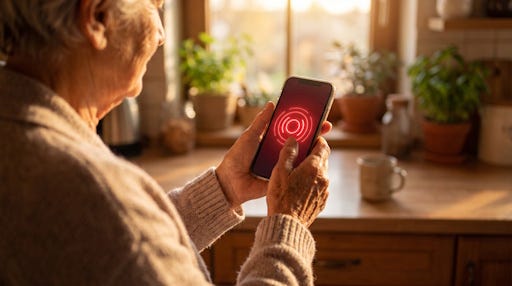
Have you ever thought about what your phone would actually do for you in that moment? Not what it could do in theory. What it’s actually set up to do, right now, today.
Most phones sold in the last several years have a feature built in exactly for this. It’s called Emergency SOS, and there’s a good chance you’ve never turned it on. I hadn’t checked mine for two years until a few days ago.
Stay confident with your tech, and keep your mind sharp. Premium subscribers get every Premium Guide, exclusive Brain Health and AI For Seniors Deep Dives, and full access to TechMaid for lifetime tech support (normally $50/year—yours free).
Why Does This Feature Matter So Much?
Emergency SOS lets your phone call for help without a passcode, without opening an app, and without finding your reading glasses. A few button presses, and it starts dialing.
It can also text your location to people you’ve chosen ahead of time. Do you live alone, garden by yourself, or drive long stretches on back roads? That location detail matters more than you might think.
Say you’re on a road trip, pulled over on a rural highway with a flat tire, and you start feeling dizzy. Who finds out where you are if you can’t say it out loud?
We’ll cover both iPhones and Androids in this article.
How Do You Turn On Emergency SOS on an iPhone?
On an iPhone 8 or newer, you press and hold the side button and one of the volume buttons together. A slider appears on the screen.
Keep holding those buttons a bit longer, instead of dragging the slider, and a countdown starts with a loud alarm sound. Let go after the countdown finishes, and your phone calls emergency services on its own.
If you have an older iPhone, the one with a Home button, quickly press the side button five times in a row instead. The same call slider pops up.
Here’s what to check right now:
Go to Settings, then Emergency SOS, to see whether “Call with Hold and Release” or “Call with 5 Presses” is turned on
Add emergency contacts so they get a text with your location the moment you call
Try the practice mode if your phone offers one, so you know what the alarm sounds like before you hear it for real
One thing that trips people up: if you accidentally start the countdown, just let go of the buttons before it finishes and the call cancels. If it does connect, stay on the line and tell the dispatcher you’re fine. Don’t just hang up on them.
What If You Don’t Have Cell Service?
This is the part that surprised me most. If you have an iPhone 14 or newer, you can text emergency services by satellite. This works even when you’re out of both cell and Wi-Fi range, according to Apple Support. No towers, no Wi-Fi, still a way to reach help.
You hold the phone up and follow the on-screen prompts to point it toward the sky. Then you answer a short set of tap-to-answer questions describing what’s wrong. Apple offers this free for two years after you activate a qualifying iPhone.
Newer Google Pixel phones have a similar satellite option built into the dialer for areas without coverage. Do you spend time hiking, camping, or driving through spots where your bars disappear? This single feature is worth learning before you need it, not during.
How Does Emergency SOS Work on an Android Phone?
Android phones vary more by brand than iPhones do. The exact screens look different depending on whether you own a Pixel, Samsung, or something else.
On a Google Pixel, go to Settings, then Safety and Emergency, then Emergency SOS, and tap Start Setup. Once it’s on, pressing the power button five times in a row triggers it. You’ll either hold your finger on the screen for three seconds or wait out a five-second countdown. It depends on how you set things up, as Google’s support page explains.
On a Samsung Galaxy phone, the feature works a little differently. Go to Settings, then Safety and Emergency, then Send SOS Messages, and turn it on. Quickly pressing the side button three times sends a text to your emergency contact. That text includes your location, a short audio clip, and photos.
Notice that difference: Samsung’s version messages your contacts, while the Pixel version can call 911 directly. Know which one your phone does before you’re relying on it.
Should You Set Up a Medical ID Too?
Yes, and this takes about five minutes. A Medical ID shows your allergies, medications, and emergency contacts right on your lock screen, without anyone needing your passcode.
Think about a paramedic finding you unconscious after a fall. They can’t ask you what medications you’re on. But they can glance at your locked phone screen and see it listed.
On an iPhone, open the Health app, tap your profile picture, then Medical ID, then Edit. On most Android phones, you’ll find similar emergency information under Settings, then Safety and Emergency, or inside the Personal Safety app on a Pixel.
Add your medications, allergies, blood type if you know it, and at least one emergency contact. It’s one of those things you do once and forget about, until the day it matters.
What Should You Actually Do This Week?
Don’t just read this and move on. Open your phone right now and check whether Emergency SOS is even turned on. A lot of phones ship with it off by default.
Here’s a short list to work through:
Confirm Emergency SOS is turned on and test the demo mode if your phone has one
Add two or three emergency contacts who’d actually answer a call at 2 a.m.
Fill out your Medical ID or emergency information screen
If you travel to areas with poor signal, check whether your phone supports satellite SOS
None of this takes more than fifteen minutes total. Fifteen minutes now versus fumbling with settings menus while you’re scared and hurt is not a close call.
Want a broader family emergency communication plan, not just your phone? Ready.gov has a solid, free planning guide worth printing out and keeping in a drawer.
What’s stopping you from checking your Emergency SOS settings before you finish reading this sentence?


I wear my phone at all times — on a strap — because I have had some serious falls. I upgraded my iPhone specially for the satellite feature (cell service is not reliable here). Be aware that it can take some time to connect to the satellite.
Holding the buttons down on each side of the phone is an extremely ableist design, btw.
I might be missing something but I have a Samsung Galaxy A35 and its set up/use is quite different from your description. The side button requires five (5) presses (not 3) to engage the Emergency SOS and then you need to go to the home screen and slide the SOS button to the right. (As an aside, there is no "trial"or "test" mode. Not that you said there would be one, but more to warn other users.) Most importantly, there is a red letter button that reads "Start SOS Message" (or words to that effect) which can suggest (as it did to me) that by clicking that button you're establishing the service... only you're not, you're initiating an emergency SOS call/text, etc... I scared the bejeesus out of two close friends. Be careful Samsung folks... go slow and don't be afraid to ask questions!