

This is Week 7 of our series on the Internet of Things. You can read previous articles at TheSeniorTechie.com.
You don’t need to transform your entire house overnight. The best approach? Pick one device that solves an actual problem you have right now.
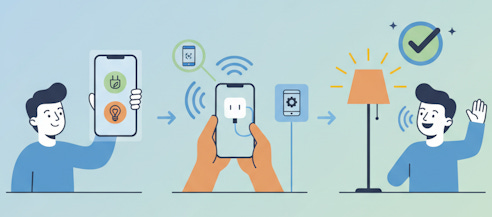
Maybe you forget to turn off the coffee maker. Or you’d like to control a lamp without getting up. That’s your starting point.
The biggest mistake people make is buying something complicated first. They get frustrated, the device sits in a drawer, and they decide this whole smart home thing isn’t for them.
Paid subscribers get full access to Premium Guides - including a monthly deep dive into brain health - plus LIFETIME access to free tech support from our partner Tech Maid.
What Actually Matters When You’re Shopping
Three things determine whether you’ll love or hate your first device.
Compatibility with voice assistants comes first. If you already own an Amazon Echo, get devices that work with Alexa. Got a Google Nest speaker? Stick with Google Assistant compatibility. Using an iPhone and thinking about Siri? Make sure the device supports Apple HomeKit. (If you buy something, I may earn a small commission to support TheSeniorTechie at no cost to you—thanks!)
Don’t mix systems right away. That’s advanced territory.
Your home’s WiFi situation matters more than you’d think. Most devices need a decent wireless signal where you plan to use them. If your WiFi barely reaches the bedroom, don’t buy a smart device for that room yet. Fix the WiFi first or start somewhere closer to your router.
Setup complexity varies wildly between devices. Some connect in three minutes. Others require creating accounts, downloading apps, updating firmware, and calling tech support before they work. Read recent reviews that mention setup specifically.
Smart Plugs vs Smart Bulbs: Your First Decision
Smart plugs win for most beginners.
They’re cheap (around $25 for a 4-pack), simple to set up, and turn any regular lamp or small appliance into a smart device. You plug the smart plug into the wall, plug your lamp into the smart plug, download an app, and you’re done. The TP-Link Kasa Smart Plug Mini works reliably with both Alexa and Google Assistant.
Smart plugs just control power on and off. That’s it. No dimming, no color changes.
Smart bulbs offer more features but cost more and require more setup. They let you dim lights, change colors, and create different lighting moods. Philips Hue bulbs work across all major platforms and connect through their own hub using something called Zigbee, which won’t clog your WiFi.
The catch? You need that separate hub box plugged in somewhere, and the bulbs cost $30-50 each.
Understanding the Matter Standard
You’ll see a logo that looks like three connected shapes on newer devices. That’s Matter, and it’s actually worth understanding.
Matter is basically a universal translator for smart home gadgets. Before Matter, a device might work with Alexa but not Google. Or it worked with Apple but not Amazon. Matter-certified devices work with all three major systems.
Even better, Matter devices connect locally over your home network. If your internet goes down, they keep working. Non-Matter devices usually stop functioning when the internet hiccups because everything goes through the cloud.
New Matter-compatible devices are hitting stores now in early 2026. If you’re buying fresh, look for that Matter logo. Your device will have better compatibility down the road.
The Actual Setup Process
Most smart devices follow the same basic pattern.
You’ll plug in or power up the device first. Then download the manufacturer’s app from your phone’s app store. Create an account with an email and password.
The app will walk you through “pairing” mode. This usually means holding down a button on the device until a light blinks in a specific pattern. The app connects to the device and asks for your WiFi network name and password.
Give the device a name you’ll remember when talking to it. “Living room lamp” works better than “device_2847”.
Test it right away. Use the app to turn it on and off a few times. If that works, try a voice command through your smart speaker.
When Things Go Sideways
Devices showing as “offline” in the app represent the most common problem.
First response? Turn everything off and back on. Unplug the device for 30 seconds. Force-close the app on your phone. Restart your phone. Unplug your WiFi router, wait 30 seconds, plug it back in.
This fixes things more often than you’d expect.
Still offline? Check if the device is too far from your router. Move it closer temporarily to see if distance is the problem. Some devices work fine 20 feet from the router, others need to be within 15 feet.
Look for firmware updates in the device’s app. Manufacturers constantly release fixes for connection problems. The app usually has a section for updates under settings.
If the device worked yesterday but not today, check whether your WiFi password changed or you got a new router. The device still has the old information saved and can’t connect anymore. You’ll need to reset it and set it up fresh.
Physical switches cause confusion with smart bulbs. The wall switch must stay in the “on” position always. Control the bulb through the app or voice, not the switch. Flip that switch off, and your smart bulb becomes a dumb bulb.
Getting Help Without Feeling Helpless
Most devices include a small printed guide with a QR code for video tutorials. Scan that code with your phone’s camera. Watching someone do the setup beats reading instructions.
The manufacturer’s website usually has a support section with FAQs. Search for your specific model number plus the problem you’re having.
Family members can help remotely now. Many apps let you share device control with other people. Your daughter in another state can log into the same account and troubleshoot from her phone while talking you through it.
You can also check out our partner TechMaid for low-cost online tech support.
Local tech help exists too. Best Buy’s Geek Squad does smart home setups. Independent smart home installers charge $100-300 for basic device setup and will come to your house.
When should you call a professional? If you’ve spent more than an hour frustrated and gotten nowhere, that’s your signal. Complex setups involving multiple devices or security systems warrant professional help from the start.
Some installers offer follow-up support packages. You pay an annual fee and can call when things break. For people who don’t have tech-savvy family nearby, this brings peace of mind.
Your Home’s WiFi Determines Your Success
Everything connects through your wireless router. Position it centrally in your home, not stuck in a corner or closet. Keep it away from metal filing cabinets and microwave ovens.
Older routers from 2015 or earlier struggle with smart devices. They weren’t designed for 20+ gadgets connecting simultaneously. If your router is ancient, upgrading it should come before buying smart devices.
Some people create a separate WiFi network just for smart home devices. This isn’t necessary for beginners with three or four devices. It becomes useful when you’ve got dozens of connected gadgets.
Start With Something That Matters to You
Don’t buy a device because it’s popular. Buy it because it solves something annoying in your daily routine.
Forgetting to turn off appliances? Smart plug. Hard to reach light switches? Smart bulbs. Want to hear music without fumbling with your phone? Smart speaker.
Voice-controlled speakers like the Amazon Echo Dot or Google Nest Hub work especially well for people with vision or mobility challenges. You can control other devices, make phone calls, set medication reminders, and get weather updates entirely by voice.
Start with one category. Get comfortable with it. Then add more when you’re ready.
The technology isn’t going anywhere. You can take your time.

