

This series is based on the book Who Gets Your Passwords? TheSeniorTechie Guide To Digital Estate Planning by Paul Wilczynski, published by TheSeniorTechie Press.
Lorraine sent her son Kevin a text one Sunday afternoon. It contained the passwords for her email, her bank, and several other accounts.
“Just in case,” she wrote.
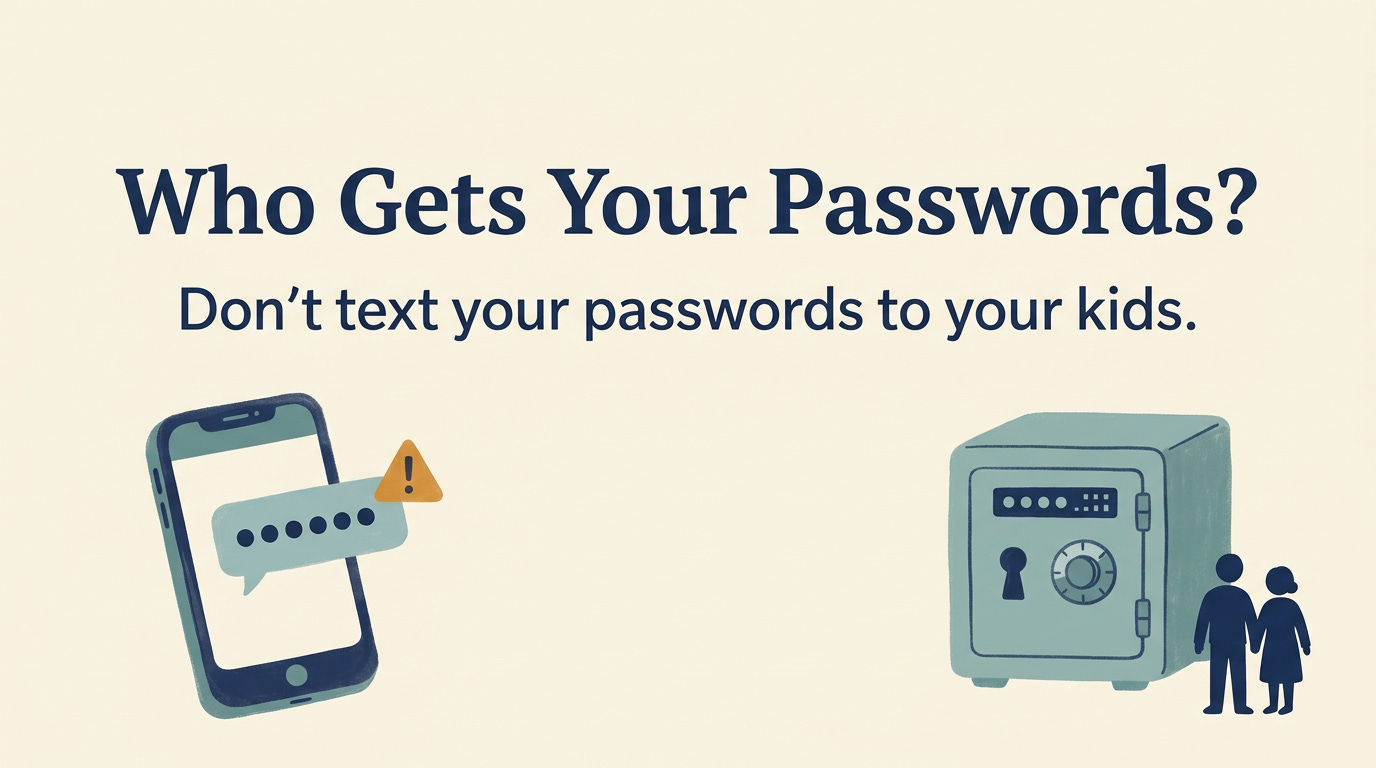
Kevin thanked her. Lorraine felt better. They had finally dealt with something she had been meaning to do for months.
Three years later, Lorraine was hospitalized. She was expected to recover, but she couldn’t manage the household bills. Kevin remembered the text and started scrolling.
He passed birthday greetings, appointment reminders, pictures of the dog, and a lengthy discussion about replacing the dishwasher. Eventually, he found it.
Several passwords no longer worked. Lorraine had changed them and never thought to send replacements.
Her email password worked, at least until the next screen asked for a verification code sent to her phone.
The phone was in a hospital drawer with a dead battery. Kevin had a charger, but it didn’t fit.
Lorraine and Kevin are composite characters, but their problem is ordinary enough. She had shared information. Neither had checked whether he could use it when she needed help.
Why the message isn’t enough
Last week, we worked on finding your accounts. This week, we’re looking at how someone you trust could reach them if you couldn’t help.
A text message records your passwords on a particular day. Every later change creates another chore: remember to update the message.
An emailed list has the same weakness. A note saved on your phone raises another question: can your family unlock the phone? Paper can be useful when it is protected, current, and easy for the right person to find. A scattering of sticky notes leaves someone else to decide which password is newest.
Then there is the verification code. Knowing a password may get your family only partway through the sign-in process. The next step may depend on a phone they cannot unlock or a number that no longer works. The book addresses these problems together because that is how families encounter them.
What a password manager changes
A password manager keeps your login information in a protected collection, usually called a vault. It can also create passwords and fill them in when you sign in. Apple’s Passwords app, for example, keeps passwords, passkeys, and verification codes together.
When you change an account password, you update the saved entry you use yourself. That gives you one place to maintain the information rather than a separate list you hope to remember.
For estate planning, though, storing passwords is only part of the job. You also need to decide how your trusted person would reach them.
Some password managers offer emergency access. You invite someone you trust and select a waiting period. If that person later requests access, you receive notice and have time to refuse. If you do not respond before the waiting period ends, the access you authorized becomes available. Bitwarden offers this feature with premium access, including qualifying paid organization memberships.
You must complete the arrangement in advance. Your trusted person needs to accept the invitation and understand what to do.
Choose an arrangement you can maintain
You do not need to spend a month comparing password managers. Start with how you and your family already use technology, then check whether the access arrangement fits your needs.
If you use Apple devices and want to share selected household passwords now, Apple’s Passwords app supports shared groups. Changes to shared passwords become available to other group members. Everyone needs compatible devices and software. Those people have access now, so choose the shared accounts accordingly.
If you want someone to request access only when needed, consider a manager with an emergency-access feature. Check which subscription includes it and read what the person will be allowed to do. Bitwarden’s feature lets you choose between viewing vault information and taking over the account.
Another approach is securely stored account instructions. 1Password provides an Emergency Kit with account details and a place to write the account password. Its instructions explain how to complete and protect that document. Anyone who can use the completed kit may be able to enter your account, so its location matters.
Sharing a few household passwords today is a different decision from preparing access to your entire password collection during an emergency. Choose deliberately.
Tell your trusted person what you chose
“Kevin knows I have a password manager” leaves too much unexplained.
Does Kevin know which one? Did he accept the invitation? Should he request emergency access, or look for a document in a particular place?
The answer depends on the product. Bitwarden’s emergency-access arrangement uses the trusted contact’s own account. A completed 1Password Emergency Kit provides the information needed to sign in to yours. Your family needs instructions for the arrangement you actually have.support.
If you are the adult child, you can offer to check the process without asking to inspect your parent’s private accounts.
Try: “You don’t have to show me everything. I’d like to know what you want me to do if you need help.”
Keep the phone number working
Put this sentence in your family instructions:
“Do not cancel my phone number until you have access to my accounts.”
Verification codes may continue going to that number. Canceling service too early can remove an access method your family still needs. Keep the phone and the correct charger available, too.
Access also has limits. Knowing a password does not establish legal authority to manage an account. Follow the provider’s procedures and ask your estate-planning attorney whether your documents adequately address digital accounts.
What To Do This Week
Add the phone-number sentence to your instructions and tell your trusted person where those instructions are.
If you have texted or emailed passwords, change them and replace that arrangement with a protected method you can keep current.
Then choose a password manager, or review the one you already use. Find its sharing or emergency-access instructions. You can move your accounts gradually; this week, understand how your trusted person would get started.
Chapter Three also covers Apple Legacy Contact, Google Inactive Account Manager, backup codes, passkeys, and the information your trusted person needs. Who Gets Your Passwords? brings those preparations together so the person you name knows what to do when you cannot explain it.

