

You don’t need to read every email. You just need a simple system that handles most of them for you.
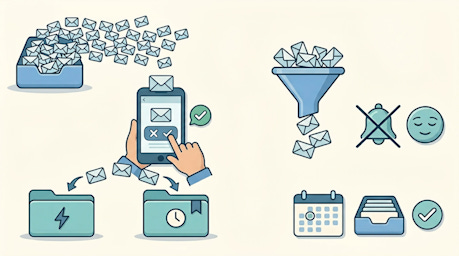
Most people open their email app expecting to find something useful. Instead, they find a wall of noise. Sale alerts, newsletters they don’t remember signing up for, shipping confirmations from two years ago, and somewhere in the middle of all that, an actual message from their doctor’s office. It takes real mental effort just to find what matters.
That’s the problem this article is here to solve. Not by turning you into some productivity guru, but by giving you a few practical moves that will make your inbox feel calmer within about an hour.
Paid subscribers get full access to all Premium Guides (including our monthly brain health deep dive) plus lifetime tech support from our partner Tech Maid (a $50/year value, included for free).
Your Inbox Got Messy for Good Reasons
Every time you bought something online, signed up for a free recipe download, or entered a contest at the pharmacy, you handed over your email address. Merchants are legally allowed to send you marketing emails after that, and most of them do. A lot of them.
It adds up fast. And the tricky part is that none of those individual decisions felt like a big deal at the time. You wanted the coupon. You wanted the free guide. Nobody warned you that you were signing up for 47 emails a month from a company you’d never shop at again.
So don’t blame yourself. Just start fixing it.
The Safest Way to Unsubscribe
Here’s where people get nervous, and understandably so. You’ve probably heard that clicking links in emails can be dangerous. That’s true, but the unsubscribe link at the bottom of a legitimate email from a real company is generally fine to use.
The smarter move, though, is to use the tools built right into Gmail or Outlook. When Gmail detects an unsubscribe option in an email, it places a small “Unsubscribe” link right at the top of the message, next to the sender’s name. You click it, confirm, and you’re done. That’s safer than digging around at the bottom of the email because your email provider is managing the process, not the sender.
On your phone, tap the three-dot menu at the top of any email in Gmail. If an unsubscribe option is available, it’ll show up right there in the menu.
When You Should Never Click Unsubscribe
If an email looks weird, don’t touch the unsubscribe link. Typos in the subject line, a sender address that doesn’t match the company name, strange formatting, or an offer that seems too good to be true -- these are red flags.
For suspicious emails, just mark them as spam. Don’t unsubscribe, don’t click anything inside the message, and don’t reply. Marking something as spam tells your email provider to block future messages from that sender, and it helps improve filtering for everyone.
The rule is simple: if you recognize the company and remember doing business with them, unsubscribing is safe. If you don’t recognize them at all, hit spam and move on.
Tackling the Backlog Without Losing Your Mind
If your inbox has hundreds or thousands of unread messages, you don’t need to go through them one by one. That approach will grind you down, and you’ll quit after twenty minutes.
Instead, try this: search your inbox for the word “unsubscribe.” Every newsletter and marketing email is legally required to include that word. You’ll get a big list of junk in one place. From there, you can mass-delete or pick through them to unsubscribe from each one.
For anything older than a month that you haven’t touched, archive it. Not delete, just archive. It’s still findable if you ever need it, but it’s out of your inbox and out of your way. This single move can clear hundreds of messages in about 30 seconds.
Action Emails vs. FYI Emails: A Simple Distinction
Not every email needs a response. In fact, most of them don’t. Once you get your inbox to a manageable size, it helps to sort what’s left into two mental buckets: emails that need you to do something, and emails that are just for your information.
Action emails include things like appointment reminders with a form to fill out, bills that need to be paid, or a question from a friend waiting for an answer. FYI emails are things like your bank statement notification, a shipping confirmation, or a neighborhood newsletter you actually enjoy reading.
The five-word test works well here: “Does this require a response?” If yes, it’s an action email. Handle it, or put it somewhere you’ll actually find it again. If no, read it and archive it, or just delete it.
Two Folders Are All You Actually Need
People get very enthusiastic about folder systems and then create seventeen folders they never use. Keep it simple.
Create two folders: one called “Action Needed” and one called “Read Later.” That’s it. When an email needs something from you but you can’t deal with it right now, drag it to Action Needed. When an email is interesting but not urgent, drag it to Read Later. Everything else either gets handled immediately or deleted.
Once a week, open those two folders and deal with what’s inside. Most of what lands in Read Later you’ll probably delete without reading, and that’s perfectly fine.
Setting Up a Filter So Emails Sort Themselves
Filters are one of those things that sound technical and turn out to be surprisingly easy. A filter is just a rule you set once, and then your email follows it automatically from that point on.
In Gmail, click the search bar at the top, then click the small slider icon on the right side of the bar. You’ll see options to filter by sender, subject line, or keywords. Set the conditions, click “Create filter,” and then tell Gmail what to do with those messages -- skip the inbox, apply a label, mark as read, whatever you want.
For example, if you get weekly emails from your pharmacy that you want to keep but don’t need clogging your main inbox, you can create a filter that moves them to a “Health” folder automatically. You never see them in your inbox, but they’re waiting for you when you need them.
Taming Notifications So They Stop Interrupting You
Getting a notification every time an email arrives is one of the sneakier sources of daily stress. Your phone buzzes, you glance at it, it’s a promotional email from a shoe company, and you’ve now interrupted whatever you were doing for absolutely nothing.
Turn off email notifications on your phone. Seriously. Email is not a phone call -- nothing in your inbox is so urgent that it can’t wait until you decide to open the app. You can check email on your own schedule, two or three times a day, and your life will not fall apart.
Go to your phone’s Settings, find Notifications, look for your email app, and turn off the alerts. You can always turn them back on if you miss them, but most people don’t.
A 15-Minute Weekly Habit That Keeps It Clean
The goal isn’t a perfect inbox. The goal is an inbox that doesn’t stress you out.
Pick one day a week -- maybe Sunday evening or Monday morning -- and spend 15 minutes on email maintenance. Unsubscribe from one or two things that showed up during the week. Clear out your Action Needed folder. Skim the Read Later folder and delete what you didn’t get to.
That’s it. Fifteen minutes, once a week. Done consistently, this single habit prevents the kind of backlog that made your inbox overwhelming in the first place. You’re not chasing the mess anymore. You’re staying ahead of it.
Next week, we’ll tackle the other great digital clutter catastrophe: your photos. Most people have thousands of them, many are duplicates, and almost none of them are organized. We’ll fix that.


Great points. I talk mail management and spam identification about this a lot on my Substack and podcast. It's one of those things that at any age we should be aware of how to identify good mail and how to mitigate the others. Thanks for sharing this!