

Does your computer ever feel like it’s working against you instead of for you? You sit down to check email, then an update screen takes over. A browser window changes its settings. A program you never wanted appears in your Start menu.
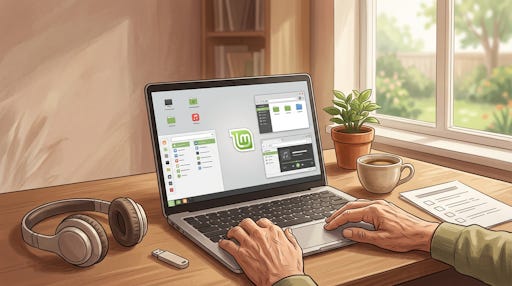
You’re not doing anything wrong. Modern Windows can be a busy, insistent houseguest, and after enough interruptions you may start wondering whether there’s a calmer way to use the laptop you already own.
A longtime Windows user wrote recently after switching his Lenovo laptop to Zorin Linux. He had spent a summer thinking it over first. A month after switching, he said he wished he had done it much sooner.
Music was the deciding factor. After getting Linux’s modern audio system, PipeWire, set up correctly, he heard better sound from that laptop than he ever had with Windows.
If you have technical questions about this article, I invite you to check out our partner TechMaid. They help seniors master technology with confidence and provide support that builds skills, safety, and independence. A free lifetime subscription to TechMaid is included with a Paid subscription to TheSeniorTechie.
What Is Linux In Plain English?
Linux is an operating system, the main software that runs your computer. Windows is one operating system. macOS is another. Linux is a third choice, and you can download and use it without paying Microsoft a license fee.
Linux comes in several versions. That sounds more complicated than it is. Think of them as different makes of the same kind of car. They share a lot underneath, but their controls and appearance differ a little.
For someone leaving Windows, two versions are especially worth trying:
Zorin OS is designed to feel familiar to a Windows user. You can choose a layout with a Start-menu-style button, a taskbar, and a file manager that won’t feel strange.
Linux Mint has a similar Windows-like layout. It has been around a long time and focuses on staying plain, stable, and easy to use.
Both are free. Both can work well on a laptop that feels slow or overloaded with Windows. Neither requires you to learn programming or type mysterious commands into a black screen.
Why Would You Consider Leaving Windows?
You may be tired of updates arriving when you’re trying to do something else. You may dislike being urged to sign in with a Microsoft account, use Edge, or accept a new feature you never asked for.
Windows 11 also sends required diagnostic data to Microsoft. You can change some privacy choices, but you can’t turn off every bit of required diagnostic data in the normal settings. That bothers some people. It may not bother you at all, and that’s fine. The point is that Linux gives you another choice.
Have you ever closed a popup, only to have it return a few days later? Or spent ten minutes hunting for a setting that used to be in an obvious place? If that has worn you down, a Linux desktop may feel pleasantly quiet.
What Programs Do You Use Today?
This is the question to answer before you install anything. Don’t start with the computer. Start with your life.
Get a sheet of paper and make four short lists:
Programs you use every day, such as your browser, email, Zoom, Word, or a password manager
Programs you use sometimes, such as photo editing, tax software, a scanner, or a genealogy program
Services you use in a browser, such as your bank, Medicare, Facebook, Amazon, YouTube, or a streaming service
Devices you plug in, such as a printer, scanner, external drive, hearing-aid adapter, webcam, or music equipment
Why do this? Because Linux is not a magic copy of Windows. Most of the things you do online will work just fine. Some Windows-only programs will not. It is much easier to decide with a real list in front of you than to discover a surprise after you have changed everything.
You’re sitting with your coffee and trying to print a tax form. That is not the moment to discover that your printer needs a different driver. Planning first saves you from that annoyed, stranded feeling.
Will Your Everyday Programs Still Work?
Many of the things you think of as “programs” are really websites now. If you use them in Chrome, Edge, Firefox, or Safari, you can usually use them in Firefox, Chrome, or another browser on Linux.
That includes many familiar services:
Gmail, Outlook.com, Yahoo Mail, and most other webmail
Online banking, credit-card sites, Medicare, Social Security, insurance portals, and pharmacy accounts
Amazon, eBay, Facebook, Instagram, YouTube, Netflix, and other streaming services
Google Docs, Google Sheets, Google Drive, Microsoft 365 on the web, and Dropbox
Facebook Messenger, WhatsApp Web, and many other browser-based communication services
Your first practical step is simple. Open each important website on a Linux test computer or a temporary Linux session from a USB drive. Sign in. Check one thing that matters, such as downloading a statement, uploading a photo, or watching a video. Don’t assume. Test it.
How Do You Handle Email And Browsing?
For web browsing, you can use Firefox, Chrome, Brave, or other familiar-style browsers. Firefox comes with many Linux systems. Chrome is available for Linux too, and if you sign into Chrome, you can usually bring over your bookmarks, saved passwords, and extensions.
If you use Gmail, Outlook.com, Yahoo, or another webmail service, you can simply open its website. The email messages remain on the service’s servers. Switching operating systems does not erase them.
If you prefer a desktop email program, Thunderbird runs on Linux and can handle many email accounts. You add your address and password, then follow the setup prompts. Before switching, make sure you know the password for every email account you use.
If you currently use Microsoft Outlook with old mail stored only on your computer, slow down. Those older mail files may need to be exported or moved before you change systems. This is one case where you should get help from someone who understands Outlook data files, or keep Windows available until you know your mail is safe.
Can You Still Write Letters And Manage Photos?
If you write letters, make lists, or work on a book, you have several paths.
Microsoft 365 in a browser: If you have a Microsoft 365 subscription, you can use Word, Excel, PowerPoint, and OneDrive through a web browser. It is familiar, although some advanced features work only in the installed Windows versions.
LibreOffice: This is a free office suite that looks broadly familiar. Its Writer, Calc, and Impress programs open and save many Word, Excel, and PowerPoint files. For ordinary letters, household budgets, and simple documents, it does the job well.
Google Docs and Sheets: If you already use Google, these work in a browser on Linux exactly as they do on Windows.
For photos, Google Photos, iCloud Photos on the web, and Amazon Photos work in a browser. If you want to organize pictures stored on your computer, Linux has photo programs such as Shotwell and digiKam. For basic picture touch-ups, try GIMP or a simpler photo app that comes with your Linux version.
Before you move, open two or three of your most important Word or Excel files in LibreOffice on a test system. Check the page layout, photos, formulas, and fonts. A simple letter will likely be fine. A complicated spreadsheet or a manuscript with fussy formatting needs closer attention.
What About Zoom, Music, And Video Calls?
Zoom has a Linux desktop app. So do several other common communication tools, though availability changes, so check the company’s download page before you switch. You can also often join a meeting through a web browser.
For music, Spotify, YouTube Music, Apple Music on the web, Pandora, and most radio-streaming sites work through a browser. VLC, a free media player, handles many video and audio files you already have.
The reader who switched to Zorin cared deeply about music. He found that PipeWire, the sound system now used by many Linux versions, improved the way his laptop handled audio. Your result may not be identical, since speakers, headphones, and sound hardware vary. Still, if music matters to you, plug in your usual headphones and play your favorite track while testing Linux.
Do that before you commit. Your ears, not an online review, get the final say.
Which Programs Need Extra Checking?
Some Windows programs simply do not have a good Linux version. You may have a beloved genealogy application, specialized embroidery software, an old photo scanner, desktop tax software, a medical-device program, or a hobby tool that only works on Windows.
That does not mean Linux is off the table. It means you need to check that particular program before you change anything. Don’t rely on a vague answer from a search engine or a stranger in a forum. Use this process.
Write down the exact name and version. “TurboTax” is not specific enough. Write “TurboTax Deluxe 2026,” for example. Do the same for a genealogy program, a photo tool, or a printer utility.
Visit the company’s official website. Search for the program name followed by “Linux download” or “system requirements.” If the company offers a Linux version, you’ll find it there. If it offers a web version, try that first on a Linux test session.
Ask the company’s support team one direct question. Say: “Does [exact program name and version] work on Zorin OS or Linux Mint?” Save their answer. Do not settle for “it should work” if you rely on the program for money, health, taxes, or important records.
Find out whether there is a replacement. Search the exact job you need done, not just the program name. For example, search “Linux genealogy program,” “Linux scanner software for [printer model],” or “Linux alternative to [program name].” Then check whether the replacement opens your files and does the specific task you need.
Test it before you switch your main computer. Use a spare laptop, install Linux alongside Windows, or have a local technician help you set up a test. Open your real files, connect the real device, and complete one normal task from start to finish.
Picture a task you do every January: you open your tax program, import last year’s information, and print a copy for your records. That is the test. Can you do that actual job, with your actual files and printer? If the answer is not a clear yes, keep Windows available for that work.
What Do You Do If It Won’t Work?
If you find a Windows-only program that does not run on Linux, you have four sensible choices. Pick the one that gives you the least trouble.
Use the web version. Many services now work in a browser. Check the company’s website for a web app before you assume you need the Windows program.
Use a Linux replacement. For common jobs, there may be a good alternative. LibreOffice can replace basic Microsoft Office work. VLC can replace many media players. Thunderbird can replace a simple desktop email program. The replacement may not match every button or feature, so test your own work first.
Keep Windows on one computer. You don’t have to make every device Linux. You might use Linux for normal daily tasks and keep one Windows laptop or desktop for the one program that truly needs it. That is often the calmest answer.
Keep both systems on one computer. A technician can set up “dual boot,” which lets you choose Windows or Linux when the computer starts. This works, but you must restart the computer every time you want to change systems. It’s a reasonable choice if you need that Windows program only now and then.
You may see advice about Wine, Bottles, or virtual machines. Those are tools that sometimes let a Windows program run inside Linux. They can be useful, but they’re not a beginner’s first plan. A program might open but still fail to print, sync, connect to your device, or update correctly.
If a Windows-only program matters enough that losing it would be a real problem, do not gamble on compatibility tools. Keep a working copy of Windows for that program, or choose a tested replacement. You’ll sleep better.
How Do You Test Without Risk?
You do not have to erase Windows to see whether Linux suits you. Zorin OS and Linux Mint can run from a USB flash drive in a “live session.” It is a temporary version that lets you explore the menus, open the browser, check your Wi-Fi, and test sound.
Here is the exact first trial to run:
Get an empty USB flash drive with at least 8 GB of space. Copy off anything you need from it first, because preparing the drive erases what is on it.
On the official Zorin OS or Linux Mint website, download the free edition. Do not download from an advertisement, a pop-up, or an email link.
Use the installation instructions on that official site to place Linux on the USB drive. The sites name the free USB-writing tools they recommend.
Restart your laptop with the USB drive plugged in. You may need to tap a key such as F12, Esc, or F9 as it starts to choose the USB drive. Your laptop maker’s support page can tell you the exact key.
Choose the option to try Linux rather than install it. Nothing on your Windows drive should change during this temporary trial.
Connect to Wi-Fi. Open your browser. Then work through your own list of programs, websites, files, and devices.
Use this checklist during your trial:
Connect to your home Wi-Fi
Open your usual email and banking websites
Play music through your normal speakers or headphones
Try your printer, webcam, and scanner if you have them
Open a few important documents and photos from a copy on a USB drive
Make sure you can read the text comfortably and change the size if needed
If you get through that list comfortably, leave the USB drive in for several days and use Linux for a few ordinary tasks. Read the news. Write a letter. Watch a show. Download a document. You will learn more from three quiet afternoons of ordinary use than from an hour of reading computer advice.
Do not enter passwords or personal information into a Linux download or setup screen you found through a popup or an email. Go directly to the official Zorin OS or Linux Mint website when you are ready to download. If an offer for “Linux help” appears out of nowhere, close it. Real operating systems do not need to scare you into calling a number.
You can also visit the FBI’s Internet Crime Complaint Center at https://www.ic3.gov if you need to report a suspicious tech-support scam. For independent guidance on computers and online safety, AARP’s technology resources at https://www.aarp.org/home-family/personal-technology/ are a useful starting point.
Tech questions? Ask our partner TechMaid.
Frequently Asked Questions
• Q: Can I keep my Windows files if I try Linux?
• A: Yes, trying Linux from a USB drive does not erase your Windows files, and a careful installer can also preserve them when setting up a dual-boot computer.
• Q: Does Linux need antivirus software?
• A: Usually, Linux users do not run the same kind of always-on antivirus programs common on Windows, but you still need strong passwords, software updates, and caution with email attachments and downloads.
• Q: Can I print from Linux?
• A: Often, common printers work on Linux, but you should test your exact printer model during a live USB session before installing anything permanently.
• Q: Will my password manager work?
• A: Most, including browser-based and web-based password managers, work on Linux, but check your password manager’s official site and test access to your vault first.
• Q: Can someone help me install Linux remotely?
• A: Yes, but only work with someone you already know or a reputable local technician, and never give remote access to a person who contacted you unexpectedly.
What is the one Windows program or device you’d want to test first?


You explain this so clearly I'm tempted to try it! You make me believe I could handle the transition, maybe even by myself. Thanks!
How vulnerable is Linux to malware and viruses compared to Windows 10 or 11.